Node Video
- 4.5
- Rating
- 10.00M
- Installs
- Free
- Price

 Analysis by App-foxy
I came to Node Video looking for a mobile editor that could handle more than quick cuts, captions, and a few ready-made effects. My usual starting point is a short clip recorded on a phone, followed by a very specific idea: adjust the movement, build a layered composition, add text that follows the action, and export something that feels deliberately made rather than assembled from a template. That is where this app makes its strongest case. It is a video editing app from Shallway Studio, aimed at people who want desktop-style control while working on an Android device.
The first thing I noticed is that it does not try to hide the complexity of editing. The interface gives you room to work with layers, keyframes, effects, and detailed adjustments instead of reducing every task to a single automatic button. I appreciate that honesty. It means there is more to learn, but it also means the app can support a more personal workflow once you understand how its timeline is organized.
Node Video is free to install and suitable for everyone from an age-rating perspective, with optional purchases ranging from $1.99 to $29.99 per item. Its current version is 8.7.0, and it runs on Android 7.0 or later. Those details make it accessible to a wide range of phones, although the editing experience still depends heavily on the device’s screen size, memory, and ability to preview complex projects smoothly.
You May Also Like

 Blood Strike: 2.5 Anniversary
Blood Strike’s Loadouts Turn Every Drop Into a Tactical Gamble
A close look at Blood Strike’s custom loadouts: how fast access to signature weapons reshapes its battle royale rhythm, rewards preparation, and narrows the gap between fights.

 Pandora - Music & Podcasts
Pandora’s Music Is Easy to Start, but Harder to Recover
Pandora’s strength is its low-effort path from a seed to a station. Its weak spot is how much confidence it asks you to place in connection, setup, and quiet recovery.

 8 Ball Pool
 Is Built on Rivalries, Rematches, and Routine
A close look at the rivalries, rematches, shared routines, and unanswered safety questions that turn a quick pool match into a persistent mobile community.

 Samsung Music
’s Quiet Strength Is Playing What You Already Own
Its reach comes less from spectacle than from dependable access to a personal library. That simplicity is both the app’s strongest retention engine and its ceiling.

 AccuWeather: Weather Radar
AccuWeather Review: A Quick, Clear Forecast for Everyday Decisions
For everyday plans, the best forecast is the one you can understand quickly. AccuWeather makes rain timing, radar, and local conditions easy to act on, with a few trade-offs.

 Hill Climb Racing
Why Hill Climb Racing Still Turns Crashes Into One More Run
A tiny car, a bumpy hill and one more upgrade: Hill Climb Racing keeps resurfacing because its simple chaos makes every near-miss feel personal.
More From Our News Desk



From a phone clip to a finished edit
I find it helpful to treat a phone edit as a sequence of small decisions rather than one long session: first choose the story, then shape the timing, and only afterward refine movement and effects. That approach makes a layered timeline easier to manage and gives me a clearer way to judge whether each addition earns its place. Next, I look at how that workflow changes when an edit becomes more demanding.
Starting with the raw material
My most useful test was a realistic one: I started with a handful of phone recordings rather than a carefully prepared production. One clip showed a person walking past a bright background, another contained a close-up detail, and a third was intended to become the ending. The goal was a short vertical video with a moving title, a controlled color treatment, and a transition that felt connected to the subject.
That starting condition matters because Node Video is not mainly about pressing a preset and accepting the result. I had to make decisions about the order of the layers, the timing of each clip, and which visual changes deserved keyframes. The app rewards planning. Before adding effects, I found it helpful to decide which clip was the visual anchor and which elements were supporting it. Without that decision, the timeline can quickly become a collection of attractive but unrelated adjustments.
For a beginner, the first few minutes may feel less welcoming than in a template-based editor. Apps built around instant social posts often show a clear path: choose a format, select media, pick a style, and export. Node Video instead feels closer to opening a compact editing workstation. I see that as a strength for control, but a weakness for anyone who only wants a fast result with almost no learning.
Building the timeline in a sensible order
I prefer to begin with the main footage and establish the basic timing before touching decorative effects. In Node Video, this approach prevents a common mobile-editing problem: spending time animating an overlay that later has to be moved because the underlying clip was shortened. Once the main sequence was in place, I added the secondary footage above it and treated the title as its own visual element rather than baking it into a clip.
The layer-based approach is especially useful when an edit needs separate control over picture, text, and visual treatment. If the title needs to move differently from the video, it can be adjusted without rebuilding the entire composition. I also found it easier to compare alternatives when each part remained independent. A subtle overlay could be reduced or removed without damaging the cut underneath.
My practical tip is to name or mentally group elements by their job: main footage, supporting image, title, texture, and finishing effect. On a phone, the workspace is compact, so a crowded project becomes difficult to inspect. A clean structure is not just tidy; it reduces the chance of changing the wrong layer when several objects overlap in time.
Using keyframes instead of relying on presets
The most important part of my workflow was animation. Rather than applying a transition and leaving it untouched, I set a beginning state and an ending state for movement and opacity. This let the title enter with the footage, pause long enough to be read, and leave before the final shot became busy. The result looked more intentional than a generic slide or zoom.
Keyframes are also where Node Video begins to separate itself from simpler mobile editors. They allow an effect to respond to the timing of the footage instead of remaining static across the entire clip. For example, a visual adjustment can be gentle during a calm moment and more noticeable during a beat or change in movement. That kind of timing is easy to overlook, but it is often what makes a short edit feel polished.
There is a trade-off. Precise animation takes patience, and a small phone screen is not the ideal place to make tiny timing changes. I learned to zoom in on the relevant part of the timeline before adjusting a keyframe, then zoom back out to check the overall rhythm. Making changes while viewing only a broad timeline can produce motion that starts too early or ends too late.
Managing effects without losing the original image
Node Video gives me a better result when I treat effects as part of the story rather than as proof that the app has advanced tools. I tested a restrained combination: a color change for consistency between clips, a soft visual layer for atmosphere, and a more noticeable treatment only at the transition. Applying everything at once made the footage less clear, while separating the adjustments helped me judge what each one contributed.
One useful habit is to preview an effect at reduced intensity before deciding whether it belongs in the final edit. Mobile editors make it tempting to choose the strongest version because it looks dramatic in isolation. When the complete sequence plays, that same effect may compete with the subject, hide text, or make the next shot feel disconnected. Node Video is capable of elaborate styling, but its flexibility makes restraint more important, not less.
I also recommend keeping a plain version of the composition in mind before experimenting. If the edit only works because several effects are covering weak timing or an awkward cut, the problem is probably in the structure. The app can help refine a good sequence, but it cannot replace choosing the right moment from the original footage.
Creating a handoff between clips and layers
The handoff from one clip to another was the point where the workflow became more than a basic montage. I used the movement in the first shot to motivate the arrival of the second. Instead of placing a transition between unrelated images, I timed the overlay so that it followed the direction and energy already present in the footage. This made the change feel connected even though the source clips were recorded separately.
That kind of handoff is where I think Node Video is particularly satisfying. Because the title, footage, and effects can be treated as separate elements, I could make them meet at the same moment without forcing them to share identical behavior. The video could continue moving while the text slowed down, and the supporting layer could fade before the main subject reached the center of the frame.
For a practical social-video workflow, this is useful when a creator needs to pass an edit between stages. I can first arrange the story, then refine motion, then apply finishing adjustments. Even if one person performs every stage, the separation makes the project easier to review. If another editor takes over, the logic of the composition is clearer than it would be in a single flattened clip.
Checking the result before export
My finished sequence had a clear beginning, a middle section where the animated title supported the footage, and an ending that did not overstay its welcome. The strongest improvement came from timing rather than from adding more effects. I removed one decorative layer because it competed with the subject, shortened the title’s exit, and softened the transition. Those small decisions produced a cleaner result than the first pass.
This is also where I would answer a common question: can someone use the app for ordinary everyday videos, or is it only for advanced visual work? It can handle ordinary projects, but its value becomes clearer when the edit needs independent layers and controlled animation. If all you need is to trim a family clip, combine a few recordings, and add a simple caption, a simpler editor will probably get you there faster.
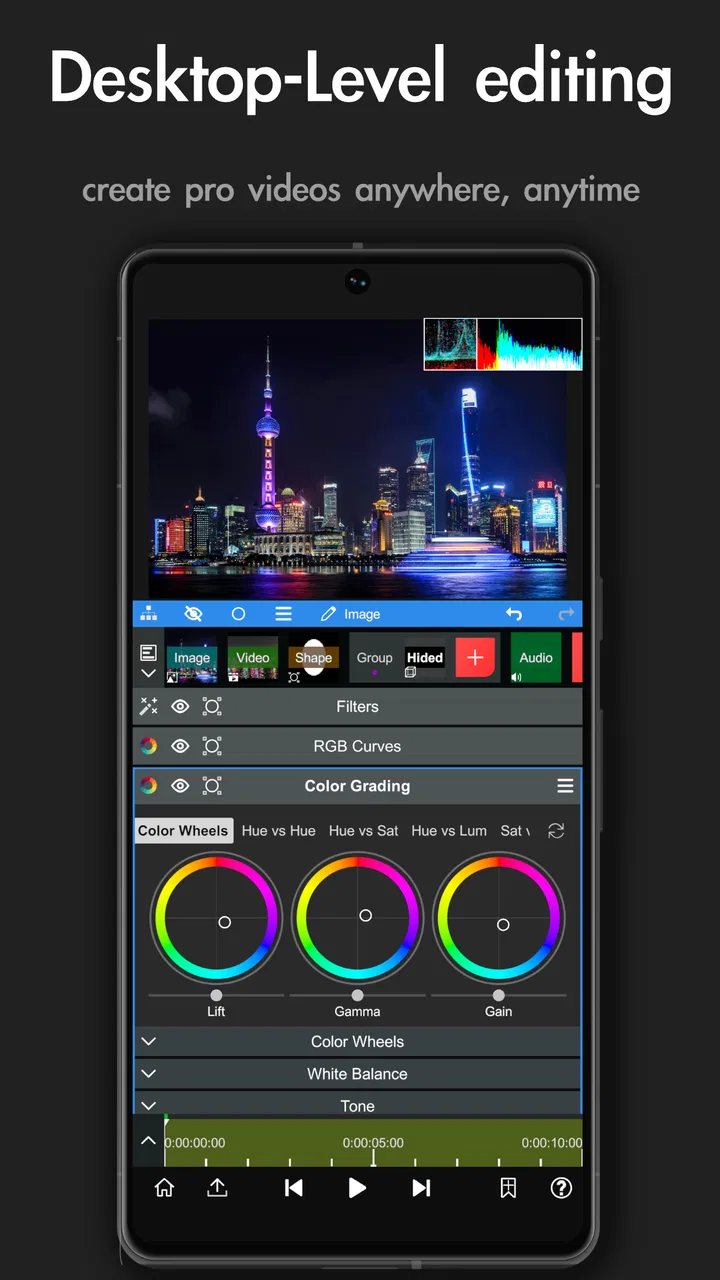
For a more ambitious short video, however, Node Video gives me room to grow without immediately moving to a computer. The store summary describes desktop-level editing on mobile, and in practical use I understand the comparison: the app emphasizes control and construction rather than a narrow set of automatic shortcuts. I would not call the phone experience identical to desktop editing, but it is much closer to that mindset than a basic social editor.
What happens when the workflow becomes demanding
The flow begins to break when the project becomes visually dense and I need to make many precise changes on a small display. Several layers, animated elements, and effects can make navigation slower for the person editing, even when the final idea is simple. This is not a reason to avoid the app, but it is a reason to keep projects organized and to work in passes instead of trying to perfect everything simultaneously.
Previewing is another practical pressure point. A phone can be convenient for capturing and editing, but it is not automatically the best environment for every complex composition. If playback feels less fluid, I would first simplify the timeline temporarily, inspect one section at a time, and avoid judging the final rhythm from a preview that is struggling. The important distinction is between a project that is genuinely mistimed and one that is merely difficult for the device to preview comfortably.
Storage and handoff habits matter too. I would keep the original recordings separate from the working edit and avoid treating the project as disposable until the exported result has been checked. A mobile workflow is excellent for speed, but it can become fragile if the source clips are scattered across the phone or if the editor expects to continue later without remembering how the layers were arranged.
Who will enjoy it, and who should choose something else
I recommend Node Video to creators who want to understand why an effect happens, not just select that it should happen. It suits short-form video makers, music-editing hobbyists, visual storytellers, and anyone who wants animated text or layered compositions without immediately sitting at a desktop. It is also a good fit for people who are willing to learn through experimentation rather than expecting every control to be obvious on the first attempt.
I would point casual users toward a simpler alternative when the priority is speed above all else. Someone making a quick birthday montage, a basic product clip, or a straightforward talking video may prefer an editor with a more guided layout and fewer decisions. Node Video can complete those tasks, but its deeper controls may feel like unnecessary work for a simple outcome.
The same applies to editors who need a large-screen, keyboard-centered workflow for long projects. A mobile app can be remarkably capable, but extended precision work is still more comfortable when the timeline and preview have plenty of space. I see Node Video as a powerful mobile companion and, for some projects, a complete editing environment—not a universal replacement for every desktop setup.
Value, access, and the learning curve
The app has earned a 4.5 average from roughly 67 thousand ratings, and it has passed 10 million installs. Those figures match my impression that it is not a niche experiment hidden behind a complicated interface; there is a substantial audience using it for mobile video work. Shallway Studio has kept the app available at no upfront cost, while optional purchases provide a way to spend more on the experience when needed.
I would not decide whether it is worthwhile based only on the free label. The more important question is whether the workflow saves you from moving to another editor. If you regularly need layered animation and detailed control, learning Node Video may be more valuable than repeatedly fighting the limits of a basic editor. If you rarely edit, the time spent learning its structure may outweigh the benefit.
The Everyone rating also makes it easy to recommend as a general-purpose creative tool, but age suitability is not the same as simplicity. A younger or completely new editor may still need time to understand the timeline and the relationship between layers, keyframes, and effects. I would start with a short project, use only a few elements, and add complexity after the basic timing feels comfortable.
My final take after following the complete workflow
Node Video works best when I approach it as a small production workspace: gather the clips, establish the story, separate the visual elements, animate only what needs movement, and review every handoff before exporting. Its strongest quality is the control it gives over the relationship between footage, titles, and effects. The most important limitation is the effort required to use that control well on a phone.
I would recommend it to a friend who has outgrown automatic templates but still wants to edit wherever the footage was recorded. The app can turn a phone into a serious creative tool, especially for short videos where motion and layered design matter. I would skip it for fast, one-button edits or long projects that demand a spacious desktop timeline.
My honest recommendation is to try Node Video with one small, clearly defined project rather than judging it from the first screen. Give yourself a simple target—one main clip, one overlay, one animated title, and one controlled transition. If that process feels rewarding, the app has enough depth to become a regular part of your workflow. If it feels like too much effort for the result you want, a more guided editor will be the better choice, and that is a limitation of fit rather than a failure of the app.
FAQs for Node Video
01What is Node Video, and what can I use it for?
Node Video is a powerful video editing app available for Android and iOS. It offers advanced editing features like multi-layer editing, keyframe animation, and more, making it suitable for both beginners and professionals. Whether you’re creating videos for social media, personal projects, or professional content, Node Video provides the tools you need.
02Is Node Video suitable for beginners or only for professional editors?
Node Video is designed to cater to both beginners and professional editors. It has a user-friendly interface with easy-to-use tools for novices, while offering advanced features like custom effects and professional-grade filters for experienced editors. Tutorials and guides are available to help users of all skill levels.
03Does Node Video support high-resolution video editing?
Yes, Node Video supports high-resolution video editing, including 4K video. This allows users to work on high-quality projects without compromising on detail or clarity. The app is optimized to handle large files efficiently, but performance may vary depending on the device’s specifications.
04Are there in-app purchases or subscription fees in Node Video?
Node Video offers a free version with basic features, but there are in-app purchases and subscription options for accessing advanced features and tools. These may include additional effects, filters, and export options. Users can choose to make one-time purchases or subscribe for premium access.
05What devices and operating systems are compatible with Node Video?
Node Video is available on both Android and iOS platforms. It requires a device running Android 5.0 or later, or iOS 11.0 or later. It’s recommended to use the app on devices with robust hardware capabilities to ensure smooth editing performance, especially for high-resolution projects.
Pros
- Advanced video editing tools available.
- Supports multi-layer editing seamlessly.
- Intuitive user interface for beginners.
- Regular updates with new features.
- High-quality export options included.
Cons
- Limited free version capabilities.
- Occasional crashes on older devices.
- Some features locked behind paywall.
- Requires a steep learning curve.
- Ad interruptions in the free version.

Node Video
Gallery